Connect Instagram, a Facebook Page or YouTube
What kind of account each network needs, and what Pombo asks permission for.
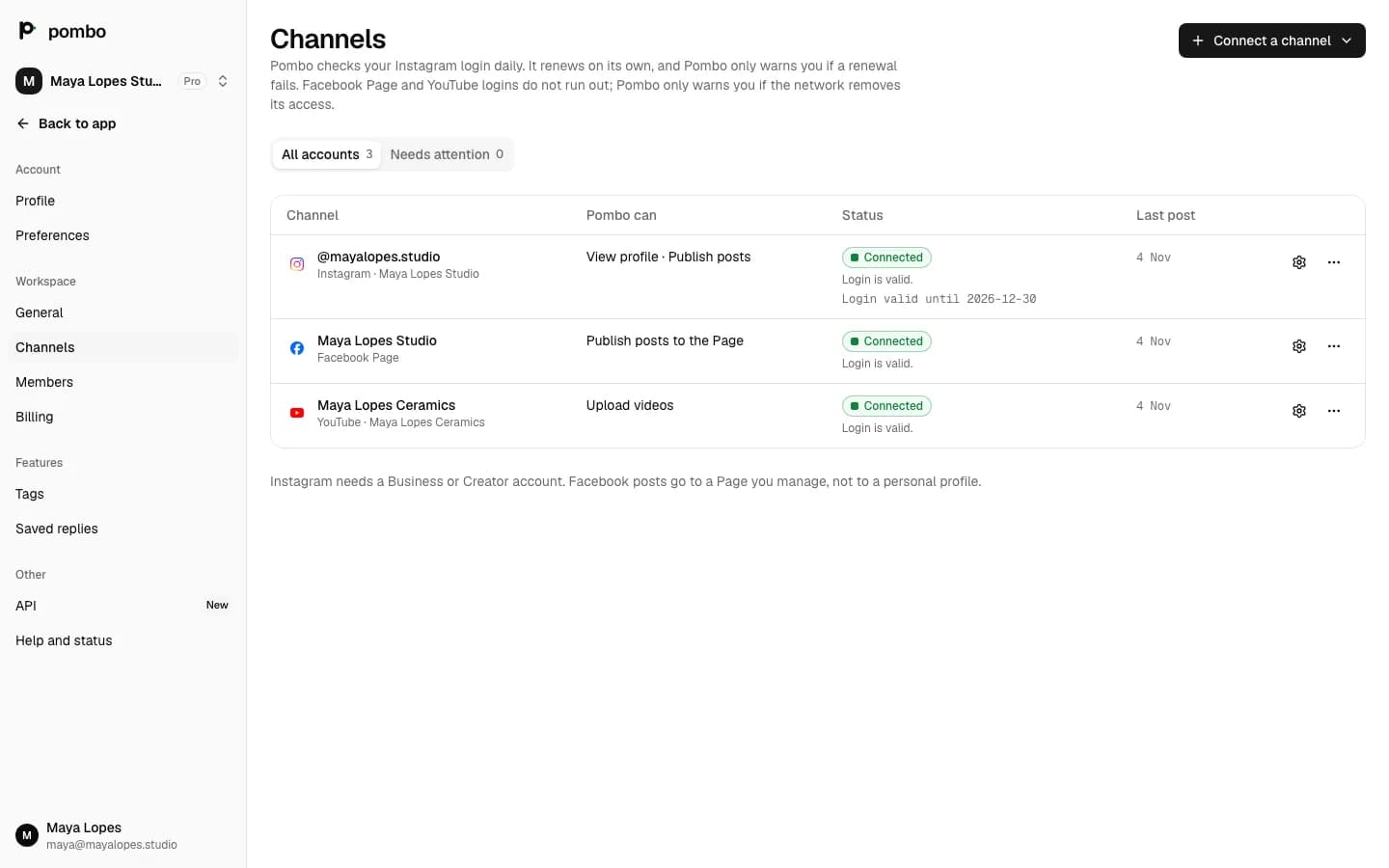
Go to Settings → Channels and choose Connect Instagram, Connect a Facebook Page or Connect YouTube. You sign in on the network's own page, so Pombo never sees your password.
Instagram needs a Business or Creator account. Pombo asks for three permissions: your profile, publishing and insights. It asks for comment access only when you turn on a first comment or use the Inbox.
Facebook posts go to a Page you manage, not to your personal profile. Pombo asks to see your Pages, publish posts, read engagement, read insights, and read and reply to comments on your Page's posts (for the Inbox). If you manage more than one Page, Pombo asks Which Facebook Page? It connects one Page at a time, so connect Facebook again to add another. If Facebook shares no Pages, sign in again and tick the Page you want. You need to manage that Page, not just follow it.
YouTube: pick your channel, or a Brand Account, on Google's screen. Leave every box ticked. Pombo needs uploads, channel details, video management, comments and analytics. If any box is unticked, nothing is connected. If the Google account has no channel, pick the account that owns it.
Channel limits: Free allows 10 channels; Pro and Team are unlimited. Disconnected channels don't count toward the limit. If you're at the limit, nothing is connected, and Pombo suggests disconnecting a channel or upgrading.