API keys, MCP and the CLI
Pro and Team feature
Create a key in Settings → API to connect your own scripts or an AI agent.
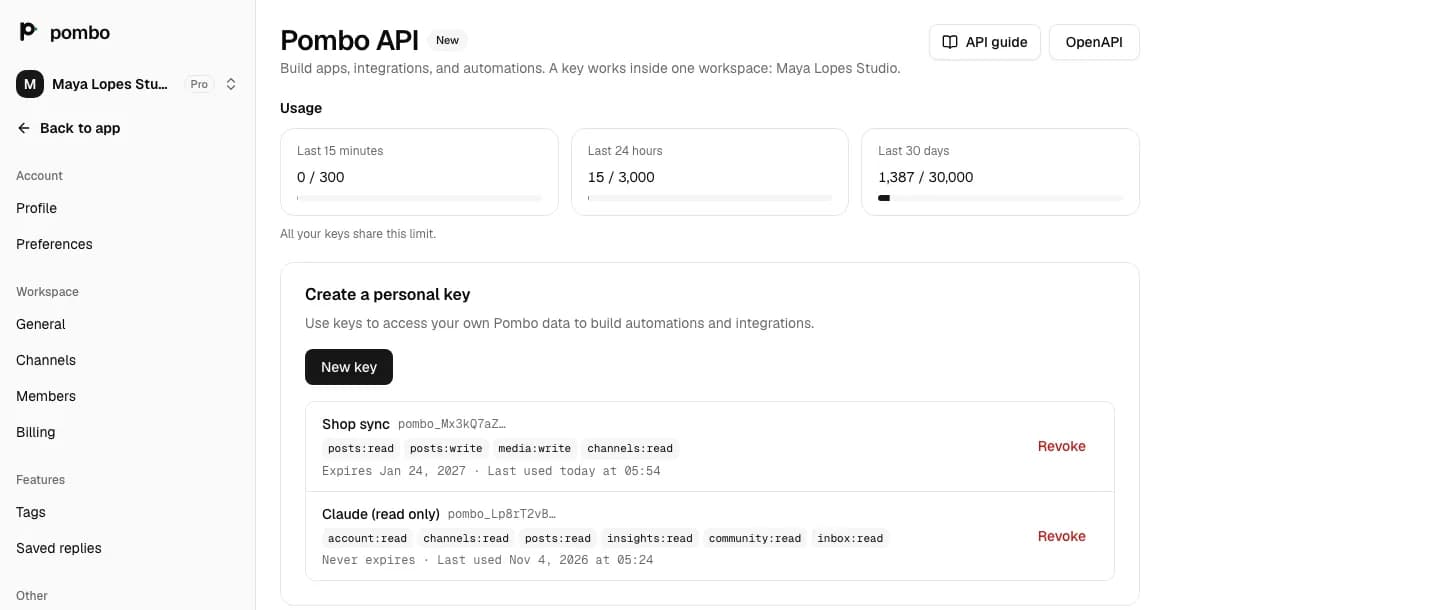
Create a key: go to Settings → API, press New key and fill in Generate API key:
- Name: optional.
- Expiration: 7, 30, 60 or 90 days, or No expiration. The default is 30 days.
- Permissions: start from a preset (Read only, Scheduling, Inbox or Everything) or tick each one.
The key starts with pombo_. Pombo shows it only once, so copy it straight away. A key works in one workspace, and each workspace can have up to 20 active keys. Only owners and admins can manage keys. To stop a key, press Revoke; anything using it stops working right away.
REST API: the address is /api/v1. Send the key in the header Authorization: Bearer pombo_… All your keys share one limit across the API, MCP and the CLI:
- 300 requests per 15 minutes
- 3,000 requests per day
- 30,000 requests per 30 days
MCP: under Connect an agent, copy the MCP server address. The page gives a ready-made command for Claude Code and a JSON setup for other clients that accept a URL and headers. Be careful with publish_post: it publishes right away.
CLI: install it with npm install -g pombo-cli (it needs Node.js 22 or later), or run it without installing with npx pombo-cli or bunx pombo-cli. Then run pombo login: your browser opens, you pick the workspace and what the CLI may do, and this computer gets its own key that expires in 90 days and shows in Settings → API.
Plans: the API needs Pro or Team. On Free you can't create keys, and existing keys stop working until you upgrade again.